Welcome
What is HiveCache?

HiveCache is a decentralized social bookmarking service based on ActivityPub. Each bookmark includes a snapshot of the page at a specific point in time, ensuring you’ll always have access to the version you bookmarked even if the original disappears.

Philosophy
HiveCache promotes human curation over algorithmic feeds, preserves web content for future reference, and empowers users with control over their data through decentralization.
Key Features
- Easy: At its core, HiveCache is an easy Bookmarking service
- Tags: Flexible tagging with custom layouts
- Archive: Save pages and archive them as
gzfiles (readable in any browser) - Privacy Controls: Public and private bookmarks (end-to-end encryption coming soon)
- Social: Follow users and discover bookmarks across instances
- Decentralized: Uses ActivityPub protocol for federation between instances
Next Step
HiveCache User Guide
How It Works
Vocabulary
- Bookmark
- Saved web pages with title, URL, main image, archive snapshot, tags, and visibility settings.
- Tag
- Organize bookmarks with custom tags. Pin important ones, add emoji, use different layouts (default, embedded, image) to your preference.
- Following
- Follow users to see their public bookmarks in your timeline. Following works across different HiveCache instances.
- Re-capturing
- Save bookmarks from your timeline to your own collection.
- This copies the main image and archive files, creating your own version independent from the original.
The Bookmarking Flow
- Capture: Use the browser extension to capture a page
- Archive: Page content is automatically archived/cached as a
gzfile - Organize: Add tags and set visibility (public/private)
- Share: Public bookmarks are shared with followers via ActivityPub
- Discover: Browse your timeline to see bookmarks from people you follow or tags you’re interested in
Screenshots
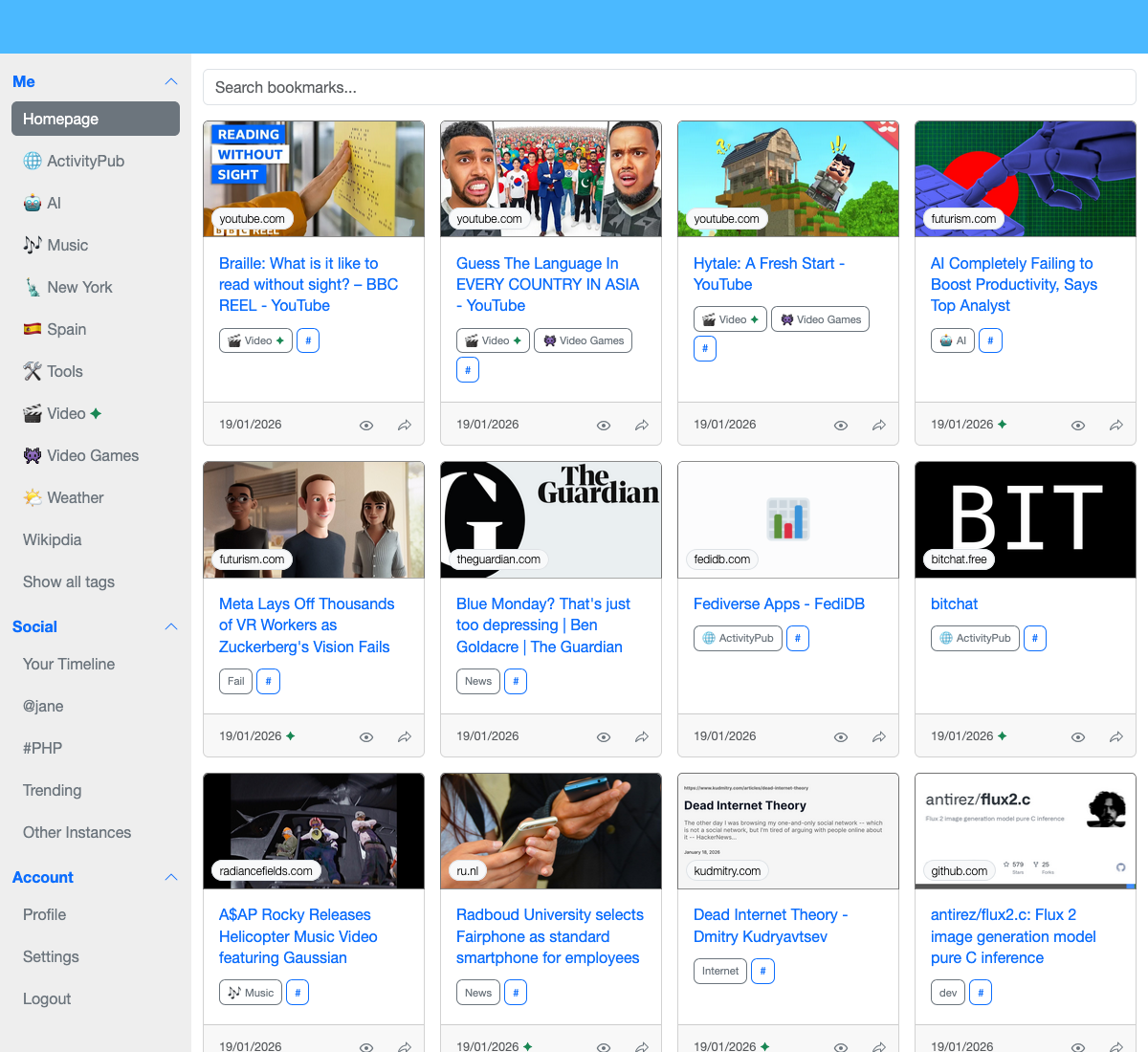
Home Page
Homepage showing your own bookmarks and tags.
Search
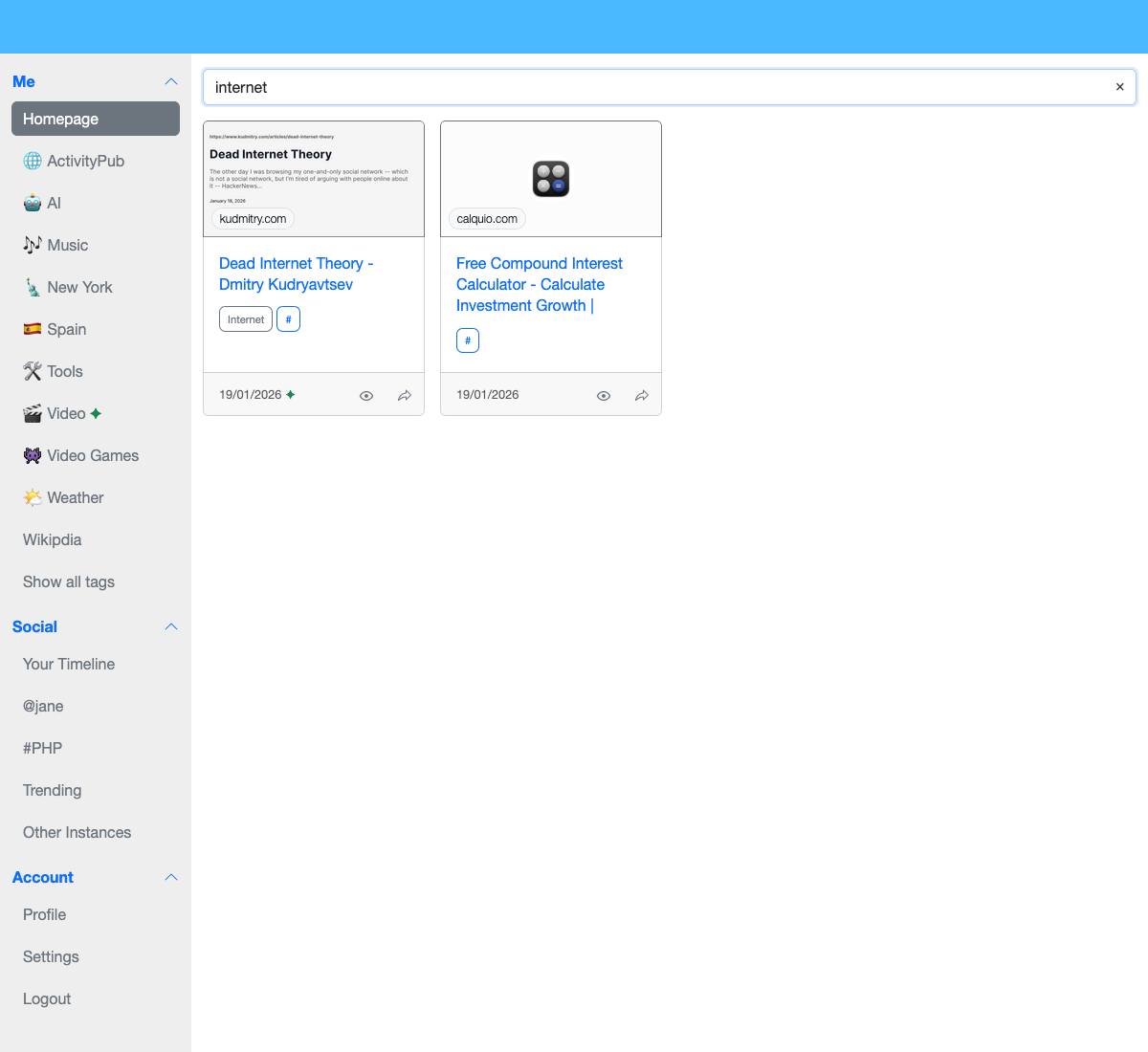
Find your bookmarks, either by tags, or with fuzzy search across title, URL, or domain.
Layouts
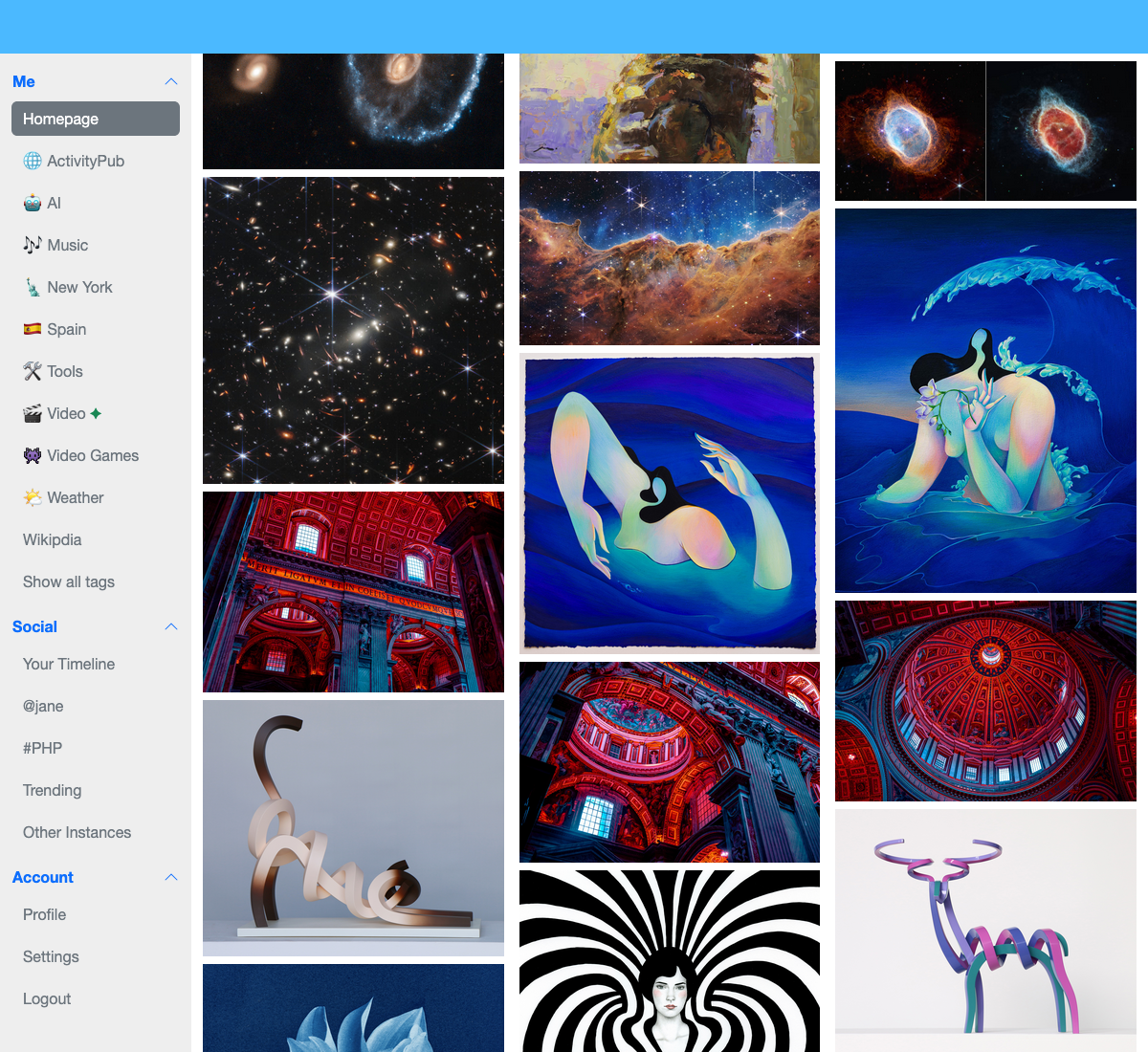
HiveCache supports different tag layouts for organizing your bookmarks:
Image-focused layout for visual browsing a bit like Pinterest.
Video layout optimized for media content with embed ready to play.
History
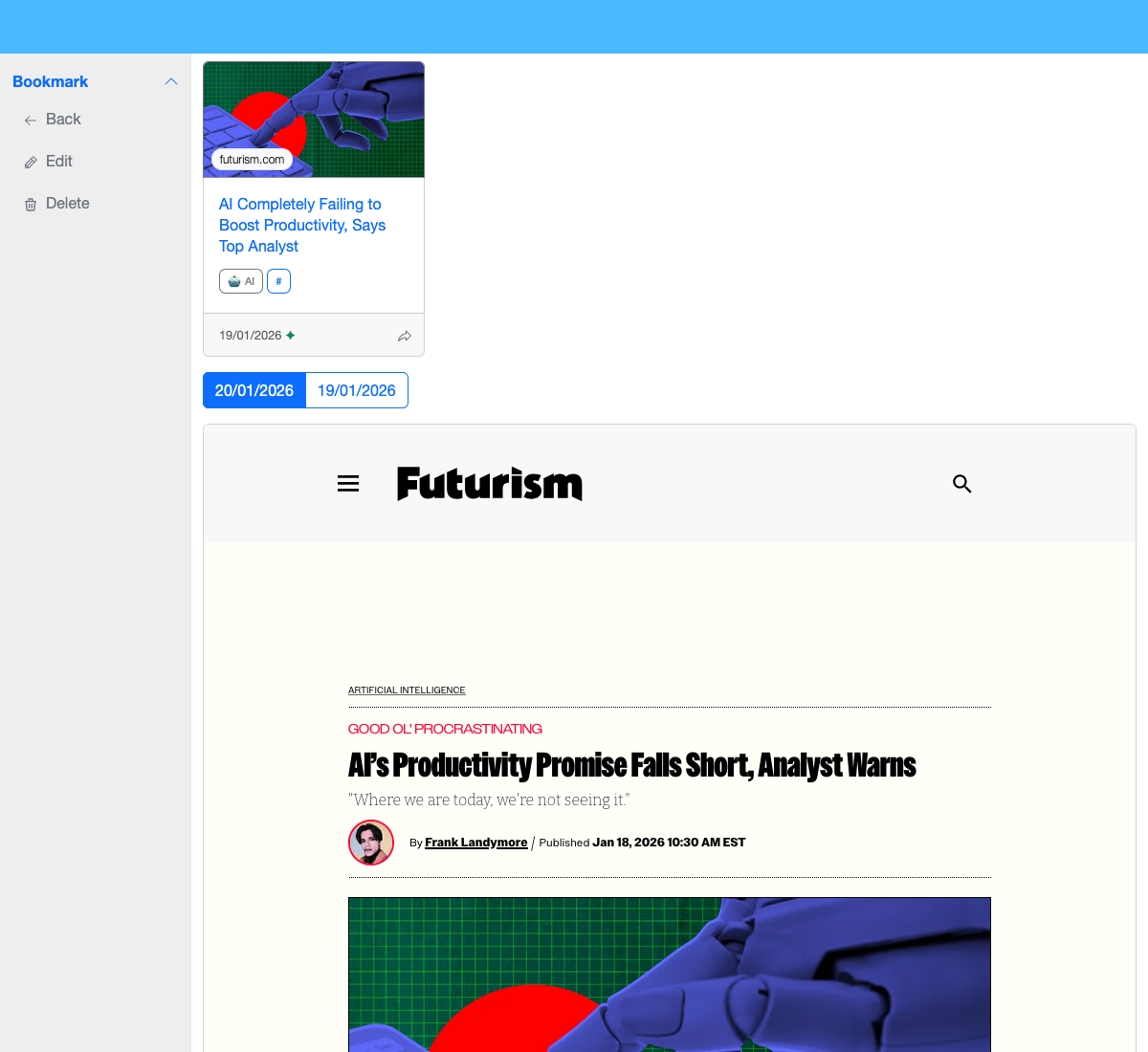
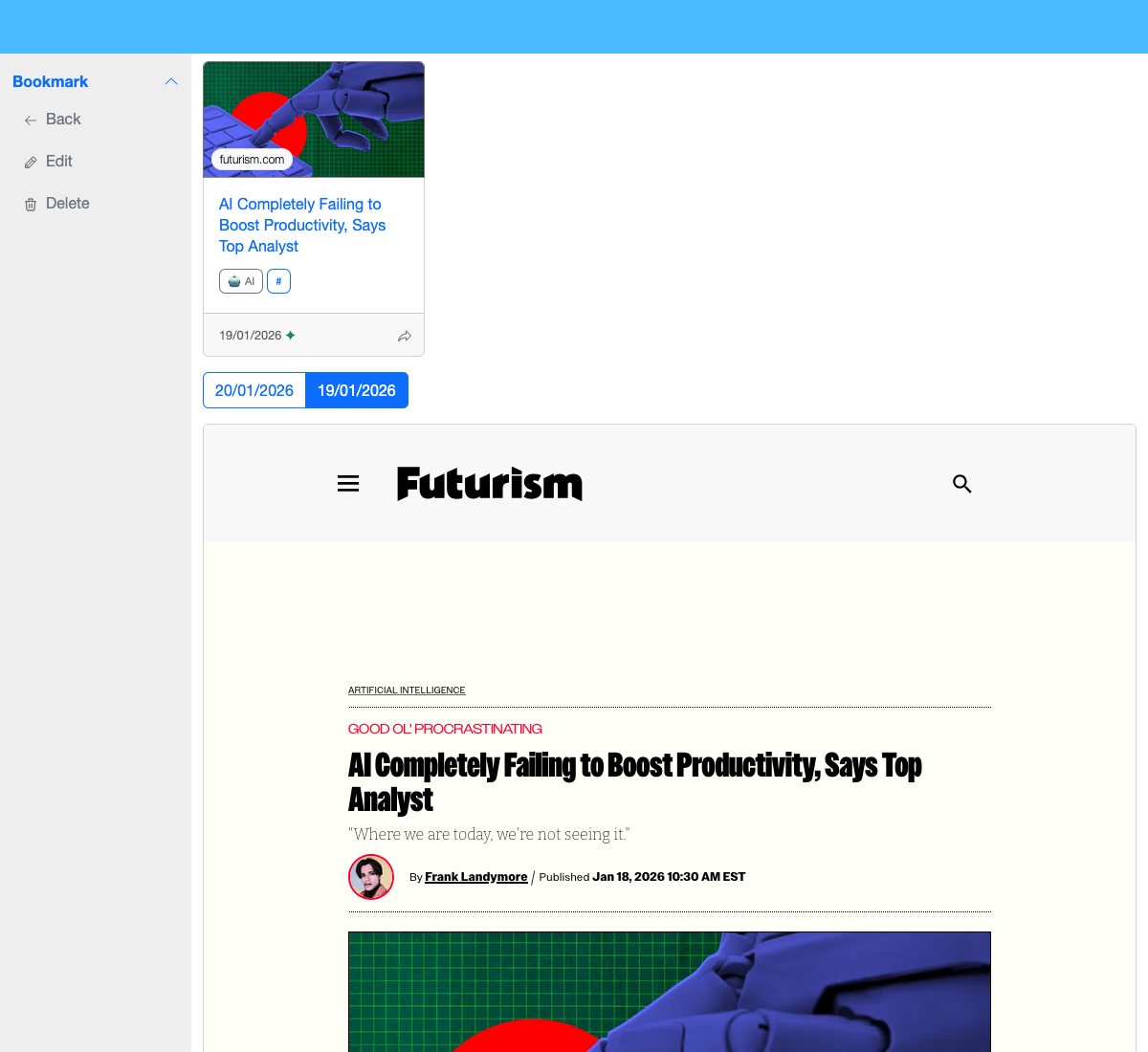
View bookmark history and versions.
Note
The archive attached to each bookmark is a real capture, not a frame to the current website.
Mobile

HiveCache is responsive and works on mobile devices, it has its own icon ready for your homescreen.
Web Client User Guide
The HiveCache web client is an interface for managing your bookmarks.
See the User Guide for general concepts and features.
Features
- Browse all your bookmarks with tag filtering and search
- Edit tags, choose your favorites, add emoji, choose layout
- Edit bookmark titles, tags, and visibility
- See the whole capture history for any given bookmark
Tag Management
You can go to the tag page to edit a tag, from here:
Pinned Tags: Use the Favorite feature to show this tag in the sidebar. Tag Layouts: Choose a layout (default, embedded, or image) to have it associated with that tag. Tag Emoji: Add an emoji to make the tag visually different.
Timeline
Your timeline shows bookmarks from users you follow, displayed chronologically. From here you can re-capture bookmarks to save them to your collection.
Following
In the Server timeline, discover new people and follow them. Following works across different HiveCache instances.
You can also follow tags (soon)
Search and Filter
Find your bookmarks, either by tags, or with fuzzy search across title, URL, or domain.
Accessing the Client
The web client is typically available at your HiveCache instance URL. For example:
https://app.hivecache.net
Tips
Tip
Multiple tag selection: When multiple tags with different layouts are selected, the client uses the layout of the first selected tag (behavior may be unpredictable).
Tip
Tag slugs: Tags are matched by normalized slugs (emojis are stripped). See Limitations for details.
Web Extension User Guide
The HiveCache browser extension allows you to quickly capture and bookmark web pages directly from your browser.
See the User Guide for general concepts.
Installation
Get the official extensions from your browser store or from https://hivecache.net
Configuration
Before using the extension, you need to configure it with your HiveCache instance:
- Click the extension icon in your browser toolbar
- Click the “Options” link (or right-click the extension icon and select “Options”)
- Enter your HiveCache instance URL (e.g.,
https://hivecache.net) - Enter your username and password
- Click “Login”
The extension will save your authentication token securely and remember your instance URL.
Usage
Capturing a Bookmark
- Navigate to any web page you want to bookmark
- Click the HiveCache extension icon in your browser toolbar
- The popup will automatically fill in:
- Page title
- Page URL
- Image (if available)
- Optionally:
- Edit the title
- Add or select tags (you can create new tags by typing)
- Change the image URL manually
- Set the bookmark as public (default is private)
- Click “Save Bookmark”
Warning
YOU MUST Let the popup open while it’s still saving otherwise the capture will fail.
The extension uploads the main image (if provided), archives the page content as a gz file,
creates the bookmark with your selected tags, and shares it with followers if public.
Tag Management
Start typing to search existing tags, or type a new tag name and press Enter to create it. Tags are automatically created if they don’t exist.
Public vs Private Bookmarks
Private bookmarks (default) are only visible to you. Public bookmarks are shared with your followers via ActivityPub.
Important
Once a bookmark is set to public, you cannot change it back to private. See Limitations for details.
Archive Failed
If page archiving fails, the bookmark will still be created without the archive. This can happen if:
- The page blocks content scripts
- The page requires authentication
- Network issues occur
Note
The bookmark will still be saved successfully, just without the archived snapshot. You can retry a capture later, it will add up to the history.
Limitations
Trust and Security
Since bookmark content is generated by the client, it can be manipulated.
Trust in the client software is required.
Tip
To mitigate this issue, the client can be easily installed independently of the server.
Since the server is managed by an administrator, it can be manipulated.
Trust in the server administrator is required.
Tip
To mitigate this issue, encryption is coming to protect your private bookmarks.
Tag Limitations
- Maximum 1000 tags per user
- Tag normalization: emojis are stripped, normalized slugs used for matching
- Example: “🐘 PHP” = “PHP” = “php” (all treated as the same tag)
- Tags that are only emojis cannot be created
Extension Capture
Page capturing is best-effort. Known limitations:
- You must keep the popup open during capture
- YouTube pages may be broken (other sites too)
- Videos are not captured
- External fonts are not captured
- Basic auth protected pages may not be captured
- Future improvements may include: video capture for YouTube, code archives for GitHub, etc.
ActivityPub
HiveCache implements a limited subset of the ActivityPub protocol, focused on enabling communication between multiple HiveCache instances.
Limited Implementation Scope
The goal of this implementation is not to be fully compatible with all the fediverse but mostly to allow multiple instances of HiveCache to communicate together.
What HiveCache Does NOT Support
- Replies, threads and conversations
- Favorites and bookmarking (in the ActivityPub sense)
- Accepting/rejecting following requests (see note below)
- Showing followers list
- Sending any notifications
Note
In HiveCache implementation, there is not much of a follower concept - followers do not show in the official client. That’s why there is no accept/reject concept either. There are no notifications about a new follower either. This may evolve in the future.
Client Behavior
- Multiple tag layouts: When multiple tags with different layouts are selected, the chosen layout is unpredictable.
Public/Private Bookmark Behavior
Warning
Once a bookmark is set to public, you cannot change it back to private. If you re-capture it as private, both versions will remain public.
Note
The reverse is not true: making a private bookmark public doesn’t make previous versions public, but all subsequent versions will be public.
Development
This section provides technical documentation and development guides for HiveCache.
Setup
Get your local development environment up and running. Learn about Docker requirements, and how to use Castor for managing the development stack.
API
Understand the API architecture built with Symfony. Learn about OpenAPI specification, and how the API handles serialization of bookmarks and related resources.
Client
Develop the React-based web client. Covers TypeScript, shared code architecture with the extension, storage adapters, and the project structure for building the web interface.
Extension
Build the browser extension for capturing bookmarks. Learn about TypeScript, shared code architecture, and how to load and test the extension in Chrome and Firefox.
ActivityPub
Understand how HiveCache implements ActivityPub protocol for federation. Learn about the following flow, bookmark capturing flow, re-capturing flow, and the controllers and message handlers involved.
Deployment
Deploy HiveCache to production. Covers Docker-based deployment, database setup, building production images, JWT key pair generation, environment variables, and infrastructure considerations.
Development Setup
This project uses docker-starter and castor for ease of developer experience.
Requirements
A Docker environment is provided and requires you to have these tools available:
- Docker
- Bash
- Castor
Docker Environment
The Docker infrastructure provides a web stack with:
- NGINX
- PostgreSQL
- PHP
- Traefik
- A container with some tooling:
- Composer
- Node
Domain Configuration (First Time Only)
Before running the application for the first time,
ensure your domain names point to the IP of your Docker daemon by editing your /etc/hosts file.
This IP is probably 127.0.0.1 unless you run Docker in a special way.
echo '127.0.0.1 hivecache.test api.hivecache.test admin.hivecache.test' | sudo tee -a /etc/hosts
Starting the Stack
Launch the stack by running this command:
castor start
Note
The first start of the stack should take a few minutes.
The site is now accessible at the hostnames you have configured over HTTPS
(you may need to accept self-signed SSL certificate if you do not have mkcert installed on your computer - see below).
SSL Certificates
HTTPS is supported out of the box.
SSL certificates are not versioned and will be generated the first time you start the infrastructure (castor start)
or if you run castor docker:generate-certificates.
If you have mkcert installed on your computer, it will be used to generate locally trusted certificates.
See mkcert documentation to understand how to install it.
Do not forget to install CA root from mkcert by running mkcert -install.
If you don’t have mkcert, then self-signed certificates will instead be generated with openssl.
You can configure infrastructure/docker/services/router/openssl.cnf to tweak certificates.
You can run castor docker:generate-certificates --force to recreate new certificates if some were already generated.
Remember to restart the infrastructure to make use of the new certificates with castor build && castor up or castor start.
Builder Container
Having some composer, yarn or other modifications to make on the project? Start the builder which will give you access to a container with all these tools available:
castor builder
Other Tasks
Checkout castor to have the list of available tasks.
API Development Guide
The HiveCache API is built with Symfony and follows RESTful principles with ActivityPub protocol support.
Note
The API is designed for max 1000 users per instance to encourage decentralization
Technical Stack
- Framework: Symfony
- Database: PostgreSQL
- Authentication: JWT (Lexik JWT Bundle)
- Serialization: Symfony Serializer with custom normalizers/denormalizers
- API Documentation: Manual OpenAPI specification
IRI Normalizer/Denormalizer
HiveCache uses a custom IRI (Internationalized Resource Identifier) normalization system for API serialization.
IRI Normalizer
When returning an object from the API, we add an @iri property to it so the client has the information for their requests.
When returning a list of objects, we add those same @iri to each of them, plus we add extra information:
- Pagination information if relevant
- Number of total objects if relevant
Example response:
{
  "total": 100,
  "prevPage": "https://hivecache.net/users/me/bookmarks?page=1",
  "nextPage": "https://hivecache.net/users/me/bookmarks?page=3",
  "collection": [
    {
      "@iri": "https://hivecache.net/users/me/bookmarks/01234567-89ab-cdef-0123-456789abcdef",
      "title": "Example Bookmark",
      "url": "https://example.com",
      "properties": "..."
    }
  ]
}
Normalizer Chain
The normalizer chain processes objects in this order:
- Entrypoint: File Objects -
FileObjectNormalizeraddscontentUrl - Entrypoint: Bookmark Objects -
BookmarkNormalizerfilters out private tags - All Objects -
IriNormalizeradds@irion objects - Final -
serializer.normalizer.objectserializes the object
IRI Denormalizer
When the client sends an object with relations to the API, it is required that those relations are valid @iri strings.
Example request:
{
  "title": "My Bookmark",
  "url": "https://example.com",
  "mainImage": "https://hivecache.net/file-objects/abc123",
  "tags": [
    "https://hivecache.net/users/me/tags/php",
    "https://hivecache.net/users/me/tags/web-development"
  ]
}
The denormalizer validates and resolves these IRIs to their corresponding entities.
PDF Archiving (Removed)
Note
At first, this project had PDF archiving, but it has been removed. Here’s why:
- The
gzarchive that we make is readable in any web browser - you just have to unzip it and open the resulting file- PDF is not an open format
- The infrastructure to build PDF was too heavy related to the fact that this project should be as light as possible so it can run everywhere at no cost
API Structure
The API follows RESTful conventions:
GET /users/me/bookmarks- List user’s bookmarksPOST /users/me/bookmarks- Create a bookmarkGET /users/me/bookmarks/{id}- Get a specific bookmarkPUT /users/me/bookmarks/{id}- Update a bookmarkDELETE /users/me/bookmarks/{id}- Delete a bookmark
Similar patterns exist for tags, following relationships, and other resources.
OpenAPI Specification
The API includes an OpenAPI specification at /api/openapi.json that documents all available endpoints,
request/response schemas, and authentication requirements.
Please regenerate it when updating the schema: castor api:openapi you should commit this file.
Client Development Guide
Note
Client and extension share some code and best practices. Please read both documentations.
The HiveCache web client is a React-based application for managing bookmarks and interacting with the decentralized HiveCache network.
Technical Stack
- Framework: React
- Build Tool: Vite
- Language: TypeScript
- Package Manager: Yarn
Requirements
You will need:
- Node.js (v16 or higher)
- Yarn
Installation
Install dependencies:
castor client:install
Development Server
Start the development server:
castor client:watch
The application will be available at http://localhost:5173 (or the next available port).
Building for Production
Build the production bundle:
castor client:build
The built files will be in the dist/ directory.
Shared Code Architecture
This client shares code with the browser extension through the shared/ directory at the workspace root.
The shared package contains:
- Unified API client (
shared/src/api/client.ts) - Single API client used by both extension and client - Type definitions (
shared/src/types/) - Types matching the OpenAPI specification exactly (including@irifields) - Storage adapters (
shared/src/storage/) - Abstracted storage for browser.storage (extension) and localStorage (client) - Tag transformations (
shared/src/tag/transform.ts) - Functions to transform tags between API and internal formats - Utilities (
shared/src/utils/) - Shared utility functions like URL resolution and cursor extraction
Storage Adapter Pattern
The client uses the localStorage adapter which wraps localStorage for token storage.
The API client is configured with this adapter in src/services/api.ts:
const apiClient = createApiClient({
  baseUrl: BASE_URL,
  storage: createLocalStorageAdapter(),
  enableCache: true,
});
Build Process
The build process uses Vite with React plugin.
TypeScript path aliases (@shared/*) are configured in tsconfig.app.json,
and Vite’s resolve alias is configured in vite.config.ts to import from the shared package.
Both TypeScript and Vite resolve these imports correctly.
Project Structure
src/components/- React componentssrc/pages/- Page componentssrc/services/- API and service layersrc/hooks/- Custom React hookssrc/utils/- Utility functionssrc/types/- TypeScript type definitions
Extension Development Guide
Note
Extension and client share some code and best practices. Please read both documentations.
The HiveCache browser extension allows users to quickly capture and bookmark web pages directly from their browser.
Technical Stack
- Language: TypeScript
- Build Tool: esbuild
- Package Manager: Yarn
- Browser APIs: Chrome Extension Manifest V3
Requirements
You will need:
- Node.js (v16 or higher)
- Yarn
Project Structure
This project uses TypeScript, all source files are in the src/ directory:
- Edit
.tsfiles insrc/ - Run
yarn buildto compile to.jsfiles - The compiled
.jsfiles are what the browser extension uses
Installation
Install dependencies:
castor extension:install
Building the Extension
Build the extension:
castor extension:build
Development Workflow
- Build once:
castor extension:build - Watch mode (auto-rebuild on changes):
castor extension:watch - Clean compiled files:
castor extension:clean
Loading the Extension in Your Browser
Chrome/Chromium
- Go to
chrome://extensions/ - Enable “Developer mode” (toggle in the top right)
- Click “Load unpacked”
- Select the
extension/directory
Firefox
- Go to
about:debugging - Click “This Firefox” in the left sidebar
- Click “Load Temporary Add-on”
- Select
manifest.jsonfrom theextension/directory
Shared Code Architecture
This extension shares code with the web client through the shared/ directory at the workspace root.
The shared package contains:
- Unified API client (
shared/src/api/client.ts) - Single API client used by both extension and client - Type definitions (
shared/src/types/) - Types matching the OpenAPI specification exactly - Storage adapters (
shared/src/storage/) - Abstracted storage for browser.storage (extension) and localStorage (client) - Tag transformations (
shared/src/tag/transform.ts) - Functions to transform tags between API and internal formats - Utilities (
shared/src/utils/) - Shared utility functions
Storage Adapter Pattern
The extension uses the browserStorage adapter which wraps chrome.storage.local for token and configuration storage.
The API client is configured with this adapter in src/api.ts:
const adapter = createBrowserStorageAdapter();
const apiClient = createApiClient({
  baseUrl: apiHost,
  storage: adapter,
  enableCache: true,
});
Build Process
The build process uses esbuild to bundle TypeScript files.
TypeScript path aliases (@shared/*) are configured in tsconfig.json to import from the shared package.
Esbuild resolves these imports automatically when bundling.
Extension Components
- Popup (
popup.html,src/popup.ts) - The main UI when clicking the extension icon - Options (
options.html,src/options.ts) - Configuration page for instance URL and authentication - Background (
background.js,src/background.ts) - Background service worker - Content Script (
content.js,src/content.ts) - Injected into web pages to extract metadata and archive pages
Manifest
The extension uses Manifest V3. Key features:
activeTabpermission for accessing current tabstoragepermission for saving configurationscriptingpermission for content script injection- Content scripts run on all pages (
<all_urls>)
ActivityPub Implementation
Before starting, see Limitations to know more about the limit of the ActivityPub implementation.
Flow and Related Code
HiveCache does not have a very complicated flow, nor all the features of a full social network.
Following Flow
Following Process
Let’s say Alice wants to follow Bob:
-
Follow Request Initiated (
MeFollowingController)- Alice’s instance builds a
SendFollowMessagethat will be processed in the background - This message sends an HTTP call to Bob’s instance (via Bob’s inbox) with a Follow Activity (in ActivityPub sense)
- Alice side: A new
Followingentity from Alice to Bob is created with status:Pending
- Alice’s instance builds a
-
Follow Request Received (
InboxControlleron Bob’s instance)- Bob’s instance receives the request via the
InboxController - It does some checking and then builds a
ReceiveFollowMessagethat will be processed in the background - This message sends an HTTP call to Alice’s instance (via Alice’s inbox) with an Accept Activity (in ActivityPub sense)
- Bob side: A
Followerentity from Alice to Bob is created with status:Confirmed(no check is performed here)
- Bob’s instance receives the request via the
-
Accept Confirmation Received (
InboxControlleron Alice’s instance)- Alice’s instance receives the request via the
InboxController - It does some checking and then builds a
ReceiveAcceptMessagethat will be processed in the background - This message is the confirmation of the following action
- Alice side: The
Followingentity status is updated to:Confirmed
- Alice’s instance receives the request via the
Capturing a Bookmark Flow
Capturing a bookmark creates a Note in ActivityPub sense. These notes are formatted in a special way, so HiveCache can interpret them and other ActivityPub software can still make use of it.
Capturing Process
Let’s say Bob is capturing a bookmark:
-
Bookmark Creation (
MeBookmarkController)- A POST request starts from the
MeBookmarkController - The controller builds a
SendCreateNoteMessagethat will be processed in the background - This message sends an HTTP call to every follower of Bob (grouped by instance using the sharedInbox) with a Create Note (in ActivityPub sense)
- Bob side: Bob has saved a bookmark to his account and the Create Note message has been sent
- A POST request starts from the
-
Bookmark Received (
SharedInboxControlleron followers’ instances)- Alice’s instance receives the request via the
SharedInboxController - It does some checking and then builds a
ReceiveCreateNoteMessagethat will be processed in the background - This message unbundles the individual recipient and parses the Note message to create the bookmark entity for every recipient
- Alice’s instance receives the request via the
- Alice side: Alice’s timeline shows a new bookmark from Bob
Important
The bookmark
mainImageandarchivefiles are references to the original Bob bookmark
Re-capturing a Bookmark Flow
Note
Re-capturing a bookmark is a special feature in HiveCache and does not use the Announce Activity available in ActivityPub. This is because the “favorite/repost” in ActivityPub does not match the full meaning of this action, as here, re-capture implies copying the bookmark
mainImageandarchivefiles.
Re-capture Process
- A bookmark shows in Alice’s timeline
- Alice is interested in it - they can either:
- Let it stay in the timeline (but soon lose it as new bookmarks appear)
- Re-capture it to save it to their own collection
Re-capture is handled the same as capturing and uses the same endpoint: MeBookmarkController.
The difference is that when re-capturing, the client copies the mainImage and archive files from the original bookmark
to create new file objects owned by Alice.
Code References
Key controllers and message handlers:
MeFollowingController- Initiates follow requestsInboxController- Receives ActivityPub activitiesSharedInboxController- Receives activities for multiple recipientsMeBookmarkController- Creates bookmarks and sends them to followersSendFollowMessage/ReceiveFollowMessage/ReceiveAcceptMessage- Message handlers for following flowSendCreateNoteMessage/ReceiveCreateNoteMessage- Message handlers for bookmark sharing
Production Deployment
This guide covers deploying HiveCache to production. We use Coolify as an example, but the same principles apply to other Docker-based deployment systems.
Deployment Method
This deployment method is Docker-based.
Infrastructure Requirements
Step 1: Database Setup
Deploy PostgreSQL 16 in your infrastructure:
- Use
postgres:16image - Make it accessible in the internal Docker network
- Configure persistent storage for the database
Step 2: Build API Production Image
Build the API production image:
- Define all required environment variables (see
.envfile in the repository for a list) - Build the image:
docker build -t hivecache --target api-build -f infrastructure/docker/services/php/Dockerfile . - Start this image with the required environment variables
Step 3: JWT Key Pair Generation
Generate a JWT key pair for authentication:
- Run the Symfony console command:
bin/console lexik:jwt:generate-keypair - Save the generated files to the server:
/api/config/jwt/public.pem/api/config/jwt/private.pem
Step 4: Expose the API
- If using Coolify: Expose the API on port 80
- If deploying on your own: Expose the
api:80port to the internet via a reverse proxy/router (e.g., Nginx, Traefik, or Cloudflare)
Environment Variables
Ensure all required environment variables are set. Key variables include:
- Database connection settings
- JWT configuration
- Application environment (prod)
- ActivityPub instance URL
- File storage configuration
- And others as defined in the
.envfile
Additional Considerations
- SSL/TLS: Set up HTTPS using a reverse proxy or load balancer
- File Storage: Configure persistent storage for uploaded files and archives
- Backups: Set up regular database backups
- Monitoring: Consider adding monitoring and logging solutions
- Scaling: The current implementation is designed for up to 1000 users per instance to encourage decentralization
Note
The system is designed for max 1000 users per instance to encourage decentralization.